
Helpful Guide
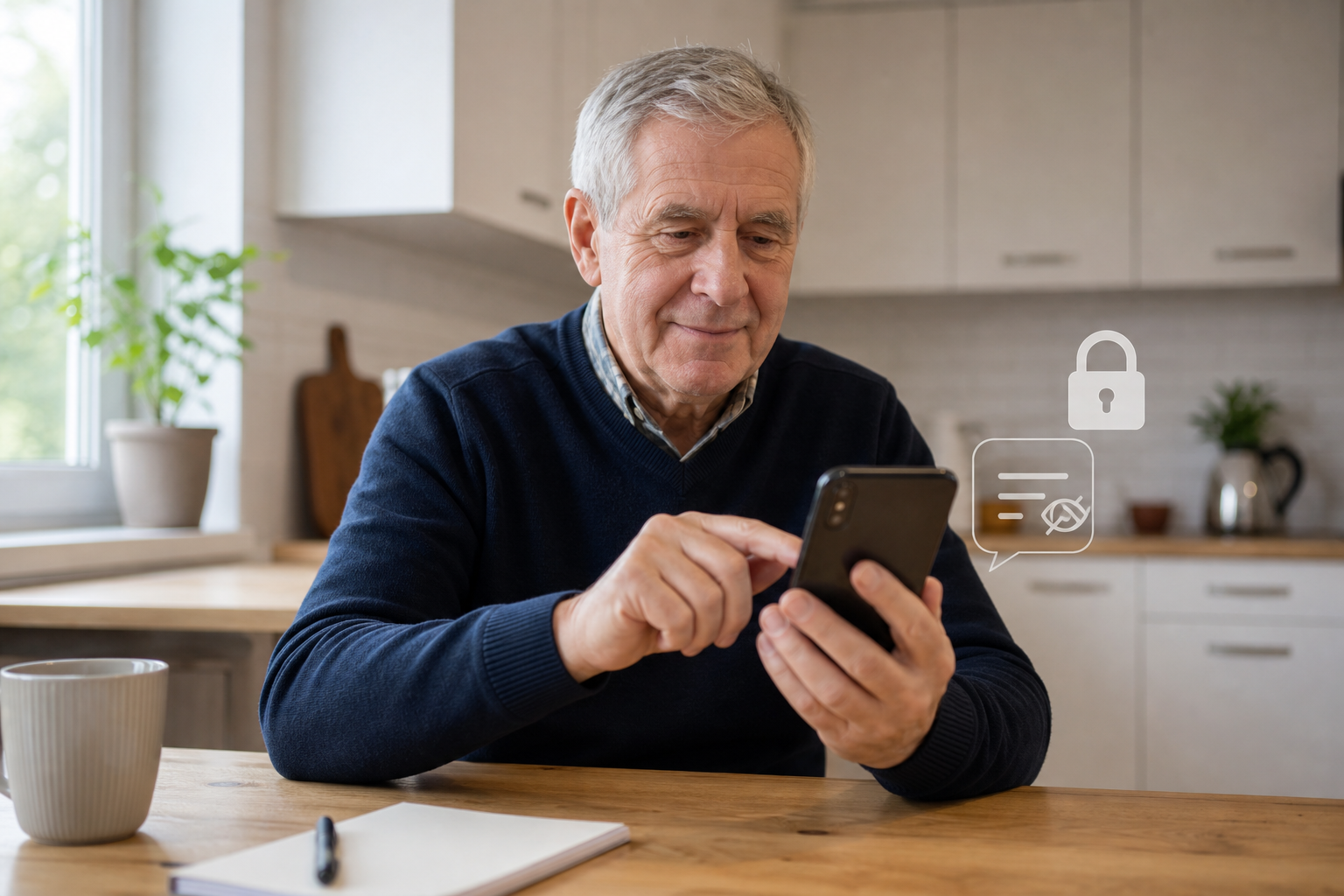
If your phone lights up on the table and shows part of a text, email, or WhatsApp message, other people can sometimes read more than you meant them to. That can happen at home, in a waiting room, during a family visit, or simply when somebody glances at the screen as it wakes up.
The good news is that you do not have to turn notifications off completely. On both iPhone and Android, you can usually keep the alert while hiding the private message preview.
The short version: keep calls and useful alerts on, but change your lock-screen settings so message content only shows when the phone is unlocked or does not show at all.
Why this small privacy change matters
People often think of privacy settings as something technical, but this one is very practical. A lock-screen preview might show:
- A private family message you did not want others to see.
- An email subject line about banking, appointments, or bills.
- A verification code or account alert that should stay private.
- A WhatsApp message that appears before you are ready to read it properly.
If you already use a screen lock, this is a useful next layer. Our guide on locking your phone or tablet with a PIN, fingerprint, or face unlock covers that first step if you have not sorted it yet.
What changes when you hide previews
This setting usually does not stop the phone alerting you. Instead, it changes how much is shown before the phone is unlocked.
- You may still hear the sound or feel the vibration.
- You may still see that a message or email arrived.
- You can reduce or remove the actual text preview on the locked screen.
That is often the best balance for people who want privacy without missing something important.
Useful distinction: hiding previews is different from turning notifications off. If you switch notifications off completely, you may miss the alert. If you hide previews, the alert can stay while the private content stays out of sight.
How to hide previews on an iPhone
Apple says you can choose when notification previews appear on the lock screen. The wording may vary slightly, but the usual route is:
- Open Settings.
- Tap Notifications.
- Choose the app you want to review, such as Messages, Mail, or WhatsApp.
- Scroll down and tap Show Previews.
- Choose When Unlocked or Never.
When Unlocked is a good middle option for many people. It keeps things private when the phone is locked but still lets you see the message content once you open the phone yourself.
Never is stricter and may suit you better if you want the maximum privacy.
How to hide previews on an Android phone
Android phones vary by brand, so Samsung, Pixel, Motorola, and other models may label the menu differently. Google says many Android phones have a lock-screen notification privacy setting that lets you hide sensitive content.
- Open Settings.
- Tap Notifications.
- Look for Notifications on lock screen, Lock screen, or a similar privacy option.
- Turn Show sensitive content off, or choose the option that hides message details on the lock screen.
If you do not see those exact words, use the search box in Settings and type lock screen, notification, or sensitive content.
Some Android phones also let you choose between showing all notifications, hiding sensitive content, or showing no lock-screen notifications at all.
Which apps should you review first?
You do not need to change every app at once. Start with the ones most likely to show personal information.
- Messages or text messages
- Calendar if appointment details are sensitive
- Banking or account apps if they show transaction details or codes
For many people, the biggest win comes from hiding previews for messages, email, and WhatsApp first.
How to keep important alerts without showing private details
If you are worried about missing something important, try this calmer approach:
- Keep notifications on for your key apps and trusted contacts.
- Hide the preview text instead of switching the alert off.
- Test the change by asking a family member to send a message.
- Lock the phone and check the screen before deciding whether you want more or less privacy.
If your phone feels noisy in general, our guide on turning off unwanted notifications without missing important calls is a useful next step.
A sensible setup for many people: keep calls, texts, WhatsApp, reminders, and banking alerts turned on, but hide the message content on the lock screen.
When to choose “When Unlocked” and when to choose “Never”
Choose “When Unlocked” if:
- You want privacy when the phone is on the table.
- You still want the message details to appear once you unlock the phone.
- You prefer convenience and privacy together.
Choose “Never” if:
- You share space with others and want stricter privacy.
- You often leave the phone where other people might glance at it.
- You receive sensitive messages about health, money, or family matters.
There is no perfect answer for everyone. The best setting is the one that feels safe without making the phone awkward to use.
Common mistakes to avoid
- Turning everything off at once and then missing useful alerts.
- Changing settings without testing them while the phone is locked.
- Forgetting apps like email or calendar and only changing text messages.
- Assuming every Android phone uses the same menu names.
If you are helping an older parent or relative, do one or two apps first, then stop and check the result together. That usually feels much less overwhelming.
When patient support is useful
Privacy settings can feel fiddly, especially when the phone wording is unfamiliar or you are trying to get the balance right between privacy and not missing family messages. Many people would rather have someone sit with them, explain the options clearly, and test the settings properly.
Simply Tech Support helps independent clients and families with safer phone settings, WhatsApp help, account confidence, and practical one-to-one support at home. You can read more on the Personal Tech Support page.


