
Online Safety
It happens quickly. A text, email or WhatsApp message looks convincing, you tap before you have had time to think, and then the worry starts.
The reassuring part is that one tap does not always mean the worst has happened. In many cases, acting calmly and in the right order can limit the risk and help you get back in control.
Start here: close the page, do not type in any passwords or bank details, do not download anything, and if you already entered information, change the affected password from a trusted device or a fresh browser session as soon as possible.
This guide explains what to do straight away, what extra steps matter on iPhone and Android, and when it is worth getting help.
First, work out what actually happened
A suspicious link can lead to different things. It may open a fake website that tries to steal your sign-in details. It may ask you to call a number. It may try to persuade you to install an app, a profile, or remote access software. Sometimes it is just a scam page and nothing more.
The next steps depend on whether you only opened the page or whether you also typed in details, approved something, or installed something.
Do not keep exploring the page to see what it does. Once you think a link may be suspicious, stop interacting with it. Curiosity can make a small mistake bigger.
What to do in the first five minutes
- Close the webpage or app tab. Do not press extra buttons on the suspicious page.
- Do not enter any more information. That includes passwords, bank card details, one-time codes, or your date of birth.
- Do not download anything. If the page asks you to install an app, update, document, or security tool, stop there.
- Do not call the number shown on the page. If it claims to be your bank, broadband provider, HMRC, or a delivery company, check independently using an official number you found yourself.
- Take a breath and review what you did. Did you only open the page, or did you also sign in, pay, approve a banking prompt, or install something?
If the message claimed to come from your bank or broadband provider, our guide on checking whether a bank or broadband support call is real may also help with the next step.
If you typed in a password, payment card, or security code
This is the point where you should move quickly, but still calmly.
- Change the password for that account straight away. If the account is email, start there first because email is often the key to resetting other accounts.
- If you reuse that password anywhere else, change those too. Reused passwords can turn one mistake into several account problems.
- Contact your bank immediately if you entered card details, online banking information, or approved a banking code or payment prompt.
- Turn on two-step verification if the account offers it and you have not already enabled it.
If the affected account is your email account, our step-by-step guide on what to do if your email account has been hacked will help you work through the order more clearly.
If the page tried to install something
Be more cautious if the link did more than open a website. Warning signs include:
- A download started automatically.
- You were asked to install an app outside the usual app store.
- You were asked to install a profile, certificate, or device management setting.
- You were told to allow screen sharing or remote access.
If any of that happened, it is sensible to stop using the affected app or account until you have checked the phone properly.
Extra checks for iPhone or iPad
Apple’s safety guidance says you can review whether any unexpected configuration profiles or device management settings have been added. On iPhone or iPad, go to Settings > General > VPN & Device Management. If there is a profile there that you do not recognise, review it carefully and remove it if it should not be present.
It is also worth installing the latest iPhone or iPad software update if one is waiting, and changing your Apple Account password if you entered it on a suspicious page.
Extra checks for Android phones
Google says Play Protect can scan your device for harmful apps and warn you about unsafe software. Open the Google Play Store, tap your profile icon, then open Play Protect and run a scan if you are worried.
Also look through your installed apps and remove anything unfamiliar, especially if it appeared after the suspicious link. Be cautious with apps you did not install from the Play Store yourself.
If you allowed screen sharing or remote access, treat that as urgent. Change important passwords, contact your bank if money may be at risk, and get the phone checked properly rather than hoping it is fine.
How to report the message or website
Reporting helps stop the same scam reaching more people.
- Suspicious emails: forward them to report@phishing.gov.uk.
- Suspicious text messages: forward them to 7726 for free.
- Suspicious websites: report them through the UK government’s phishing reporting service.
If you can still identify where the link came from, report the original message rather than going back into the suspicious webpage.
What not to do afterwards
- Do not feel embarrassed and leave it. Quick action matters more than how the mistake happened.
- Do not keep using the same weak or reused password.
- Do not trust a follow-up call or message from somebody claiming they are now helping you fix the issue.
- Do not assume your phone is fine if you installed something or handed over access.
A simple routine for families and older relatives
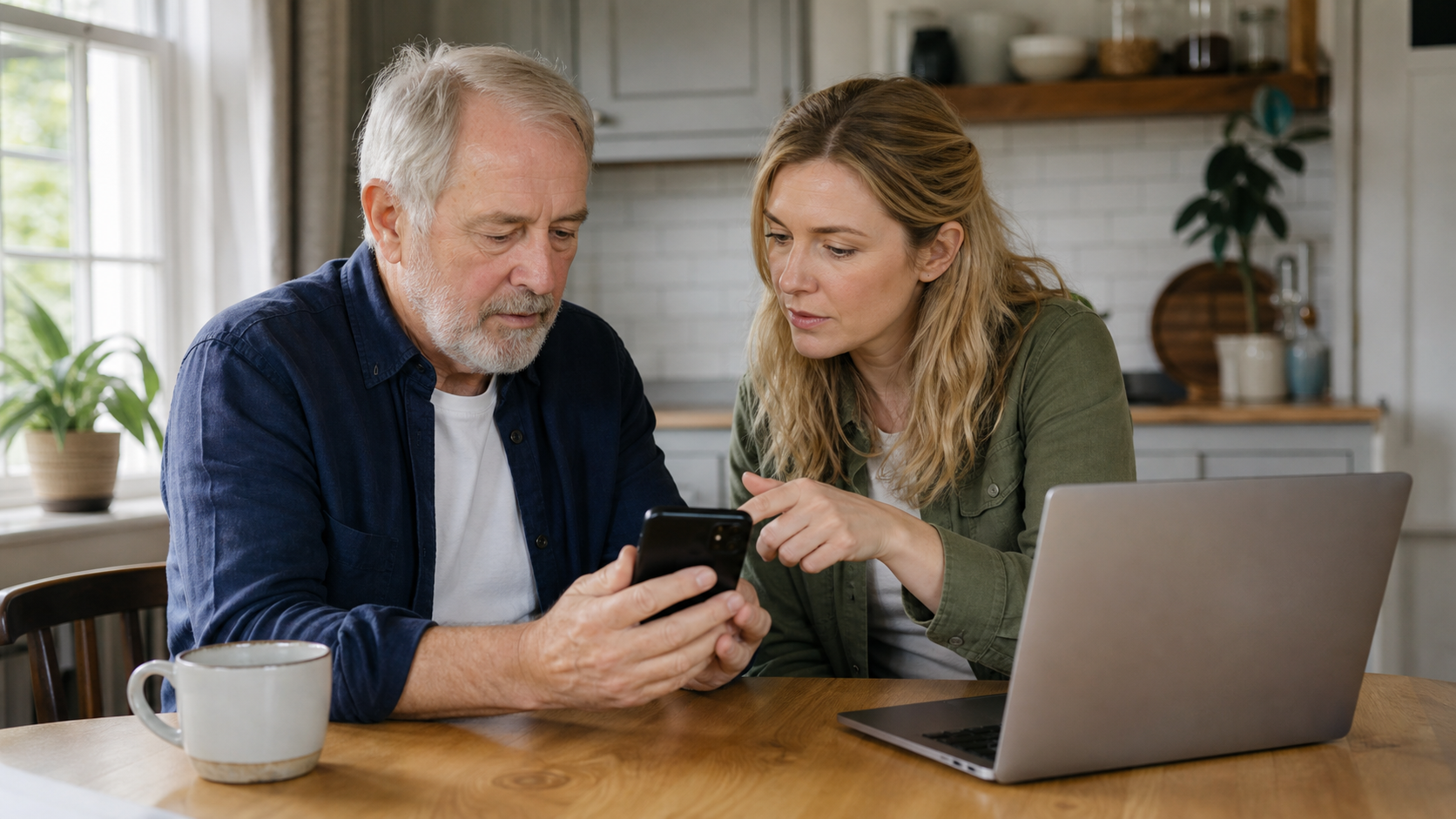
If you are helping a parent, partner or older relative, the most useful approach is a calm routine they can remember.
Use this simple rule: stop, close the page, tell somebody you trust, then check the account using the official website or app you normally use.
That short routine is often easier to remember than lots of technical detail. It also reduces the urge to keep pressing buttons when somebody feels flustered.
When it is worth getting one-to-one help
If a suspicious link has shaken your confidence, or if you want somebody patient to check your phone, passwords, email, updates and safety settings with you, Simply Tech Support can help. That may include checking whether anything odd was installed, changing key passwords in the right order, and making sure your phone is easier and safer to use day to day.
You can also visit the Simply Tech Support services page if you want practical support without jargon or pressure.


