
Helpful Guide
Changing phones should feel like a fresh start, not a worry about losing family messages, photos, voice notes, or old conversations you still want to keep.
The reassuring part is that WhatsApp now gives clearer ways to move your chat history than it used to. If you slow down and follow the official steps, you can usually keep your chats without too much stress.
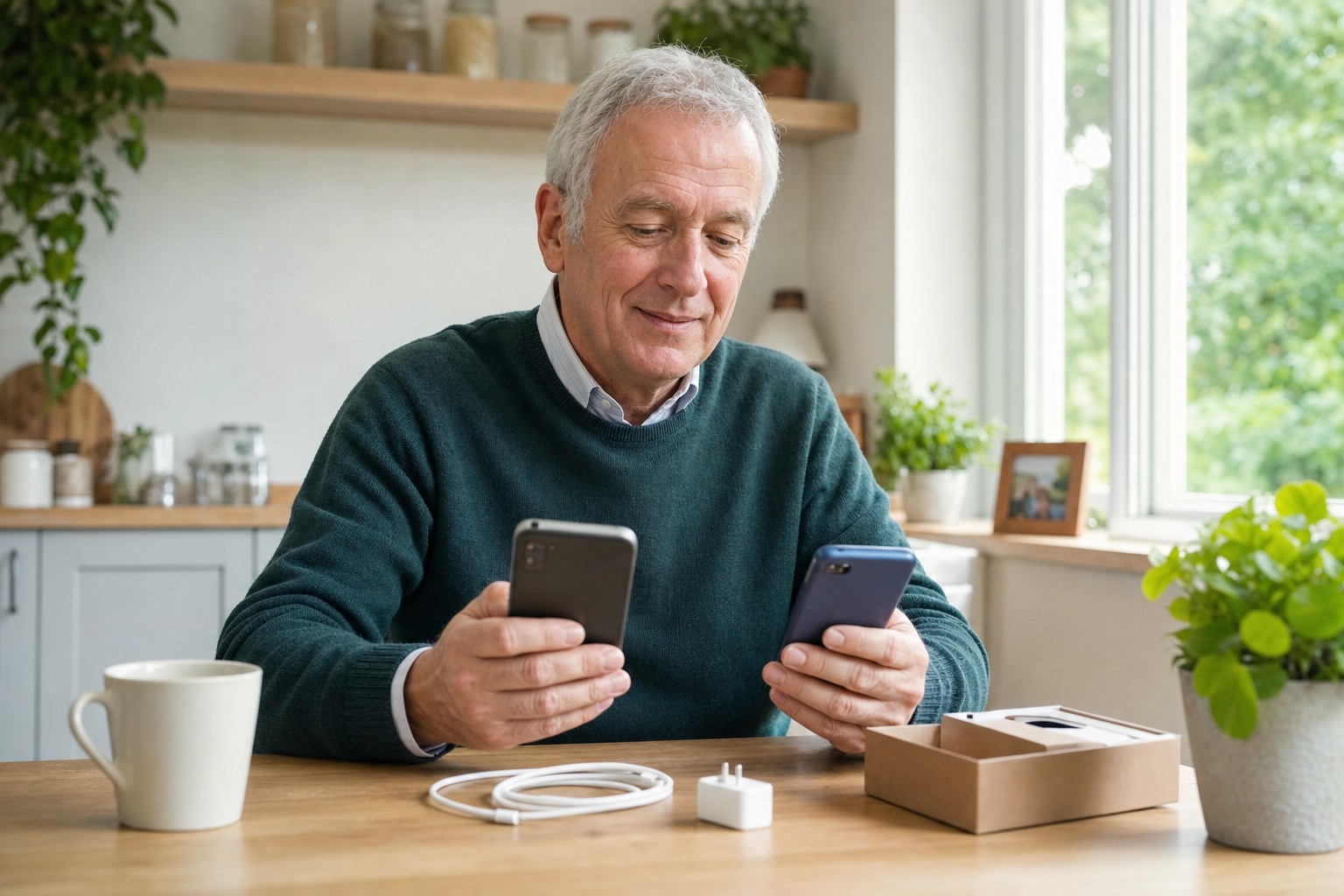
The safest approach: keep your old phone switched on, keep both phones charged, connect to Wi-Fi, and do not wipe or trade in the old phone until you have opened WhatsApp on the new one and checked that your chats are really there.
This matters because the easiest transfer method depends on which phones you are moving between. An iPhone to iPhone move is different from Android to Android, and a change between iPhone and Android needs its own official setup steps.
Before you start, do these five checks
- Update WhatsApp on your old phone if an update is waiting.
- Make sure your old phone still works and can receive the verification code if needed.
- Charge both phones or keep them plugged in during the move.
- Use a steady Wi-Fi connection and give yourself a quiet half hour.
- Check that you have enough free space on the new phone for your chats, photos, and videos.
If your current phone is already struggling for space, our guide on what to do when your device says storage is full may help before you start the transfer.
Do not rush into factory resetting the old phone. The move is only finished when you have opened WhatsApp on the new phone, checked your recent chats, opened a few older conversations, and confirmed that the important photos or voice notes are still there.
If you are moving from iPhone to iPhone
WhatsApp’s current guidance for iPhone says you can transfer chat history directly from the old iPhone to the new one. Apple’s Quick Start setup also helps move the rest of your phone data across.
- Set up the new iPhone near the old one and follow Apple’s Quick Start steps.
- On the old iPhone, open WhatsApp and use the transfer chats option when prompted.
- Keep both phones nearby until the transfer is complete.
- Open WhatsApp on the new iPhone and check that your chats appear properly before you make any changes to the old phone.
If you also want your ordinary phone photos kept safe, our guide on backing up phone photos without feeling overwhelmed is a useful separate check.
If you are moving from Android to Android
Google’s current Android setup guidance and WhatsApp’s own help both focus on transferring data during the new-phone setup, not after lots of new changes have already happened.
- Turn on the new Android phone and choose the option to copy apps and data from another device.
- Follow the on-screen pairing or cable steps so the two phones can talk to each other.
- Open WhatsApp on the old phone if needed and follow the transfer prompts there.
- Wait until the copy finishes fully before disconnecting the phones or closing the setup.
On Android, it is especially worth being patient. Interrupting a large chat transfer halfway through can leave people unsure which phone holds the most complete copy.
If you are changing between iPhone and Android
This is where people often feel least confident, but WhatsApp does support these moves when you use the official setup route.
- Android to iPhone: use Apple’s Move to iOS route during iPhone setup and follow WhatsApp’s transfer instructions.
- iPhone to Android: use the Android phone’s setup process and WhatsApp’s transfer steps for moving chats to Android.
The key point is that this usually needs to happen during the setup of the new phone, not after you have already settled in and started using WhatsApp normally on the new device.
If you are changing phone number as well as phone: sort that out carefully before or during the move using WhatsApp’s official guidance. A number change can complicate things if it is left until later.
How to check that the move really worked
Once WhatsApp opens on the new phone, do not just glance at the top chat and assume all is well. Check properly:
- Open your most recent family or group chat.
- Open one older conversation from a few months back.
- Tap a photo and a voice note to make sure media opens.
- Send a simple test message to someone you trust.
- Only then decide what to do with the old phone.
These small checks can save a lot of worry later.
Common mistakes to avoid
- Wiping the old phone too early.
- Starting the transfer when one phone is nearly flat.
- Trying to do it in a rush before leaving the house.
- Ignoring storage warnings on the new phone.
- Assuming photos are backed up separately when they are still only inside chat history.
Even confident users get caught by these. A calm setup is much safer than a fast one.
What if some chats or media seem to be missing?
Stop before making more changes. Keep the old phone untouched for the moment and check WhatsApp’s official help for your type of move. If the transfer did not finish properly, the old phone may still be the safest source copy.
This is also a good time to avoid guesswork. Repeatedly signing in and out or deleting the app can make things more confusing if you are not sure which phone has the fuller history.
Important: if you can still see the missing chats on the old phone, treat that old phone as your safety copy until you are certain the transfer is complete.
When it is worth getting help
If you are moving to a new phone and want someone patient to stay with you through the process, Simply Tech Support can help. That might mean checking storage first, guiding the transfer step by step, making sure WhatsApp opens properly on the new phone, and helping with the rest of the setup afterwards so the change feels calm rather than stressful.
Helpful sources
- WhatsApp Help Center: About changing phones
- WhatsApp Help Center: How to transfer your chat history on iPhone
- WhatsApp Help Center: How to transfer your WhatsApp account to a new phone
- WhatsApp Help Center: Move chats from Android to iPhone
- WhatsApp Help Center: Move chats from iPhone to Android
- Apple Support: Use Quick Start to transfer data to a new iPhone or iPad
- Google Help: Switch to a new Android device


