
Helpful Guide
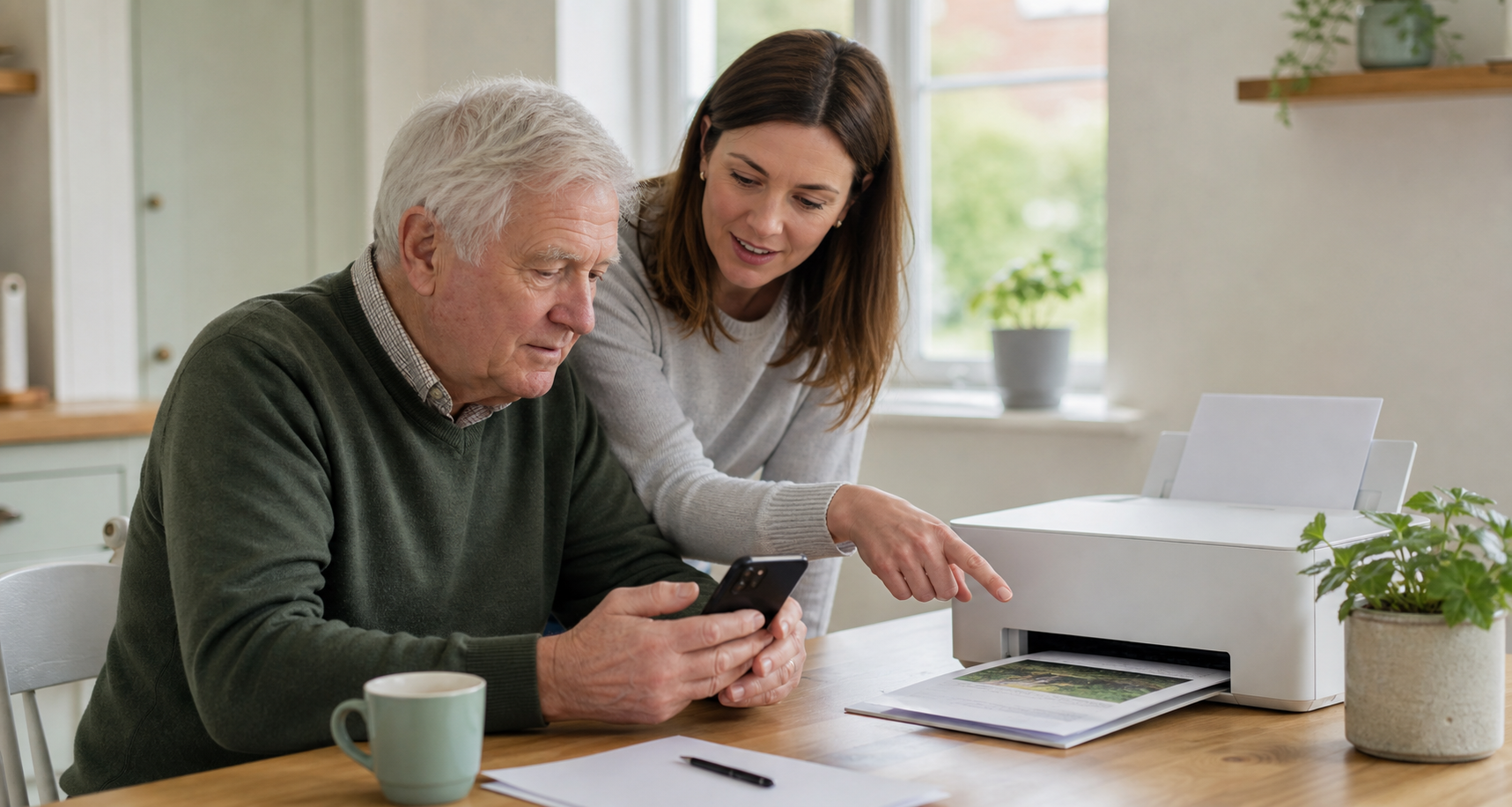
Printing from a phone or tablet can feel oddly awkward the first time, especially if the printer sits there looking ready but never appears on screen. Many people assume they need a cable, a computer, or a complicated setup, when the real fix is often much simpler.
This guide explains the calm, practical steps that usually work for iPhone, iPad, and Android devices, what to check before you start, and what to do if the printer does not show up.
The simple version: make sure the phone or tablet and the printer are on the same home Wi-Fi, open the photo, document, email, or web page you want, then look for Print in the share or menu options.
Before you try to print
A couple of quick checks save a lot of frustration.
- Make sure the printer is switched on.
- Check that the printer is connected to your home Wi-Fi.
- Make sure your phone or tablet is on the same Wi-Fi network.
- Have paper loaded and enough ink or toner.
If the printer is connected by USB to a computer only, your phone may not see it directly. Wireless printing usually works best when the printer itself is connected to the home network.
Important: if your phone is using mobile data instead of Wi-Fi, the printer may not appear at all. That is one of the most common reasons printing fails before it even starts.
How to print from an iPhone or iPad
Apple devices usually use AirPrint, which works with many modern home printers.
- Open the photo, email, web page, or document that you want to print.
- Tap the Share button or the app’s menu button.
- Scroll down and tap Print.
- Tap No Printer Selected, then choose your printer.
- Choose the number of copies or pages if needed.
- Tap Print.
Not every app shows the print option in exactly the same place, so do not worry if you have to look in Share, More, or an app menu first.
Helpful iPhone tip: if your printer appears once and then vanishes later, check that both the printer and the iPhone or iPad are still on the same home Wi-Fi rather than guest Wi-Fi or mobile data.
How to print from an Android phone or tablet
Android menus vary a bit by brand, but the general idea is similar. In many apps, you open what you want to print, then use the menu or share options to find Print.
- Open the page, photo, or file that you want to print.
- Tap the menu button or Share.
- Tap Print if it appears.
- Select your printer.
- Adjust copies or other settings if needed.
- Tap the printer icon to start printing.
Some Android devices and printer brands may also suggest installing the printer maker’s app. If your printer does not appear in supported apps, that app may help complete the setup.
What if you only want a paper copy of a photo or web page?
You do not need to make it complicated.
- For photos: open the picture in your Photos or Gallery app and look for Share or Print.
- For web pages: open the page in your browser and look for Share or the menu, then Print.
- For emails or letters: open the message or attachment first, then check the app menu for Print.
If printing is not available in that app, another useful option is Save as PDF. That gives you a copy you can keep, send, or print later from another device.
What to do if the printer does not appear
This is the problem most people run into, and it usually has a practical cause.
- Check that the printer is on and ready.
- Confirm that the printer is connected to the home Wi-Fi.
- Check that your phone or tablet is on the same Wi-Fi network.
- Restart the printer.
- Close and reopen the app you are printing from.
- Restart the phone or tablet if needed.
If other people in the house can print but your device cannot, the issue is often with the phone or tablet connection rather than the printer itself.
Watch for guest Wi-Fi: some homes have a main network and a guest network. If the printer is on one and the phone is on the other, they may not see each other.
What to do if the print comes out wrong
- If the text is tiny, check page scaling or try saving as PDF first.
- If only part of the page prints, look at the preview before printing and switch orientation if needed.
- If nothing comes out, check the printer queue, paper, and ink.
- If the wrong printer is selected, cancel the job and choose the correct one again.
It is worth pausing at the preview screen. That one screen often shows whether you are about to print one page, six pages, portrait, landscape, colour, or black and white.
When it helps to print from a laptop instead
Phones and tablets are convenient, but some forms, attachments, and long documents are easier to print from a laptop because the print preview is larger and the settings are clearer.
If your printer is already on the home network, our guide on connecting a new phone, tablet or laptop to your home Wi-Fi may help if one of your devices still will not see it.
When patient support can help
Wireless printing is one of those jobs that sounds simple until a phone, router, and printer all disagree with each other. That can be especially frustrating if you just want to print a ticket, a family photo, a return label, or an appointment letter without spending an hour on settings.
Simply Tech Support helps independent clients and families with printer setup, home Wi-Fi checks, phone and tablet confidence, and calm one-to-one help at home. You can read more on the Simply Tech Support services page.


